VEHICLE CREATOR — HOW-TO
1Load your vehicle
Drop the unlocked addon vehicle into the drop zone — the .yft files (and its .ytd textures), or the whole resource as a .zip. A real addon is usually several files: model.yft, model_hi.yft (the detailed body), plus badge/trim part files.
2Look around
Left mouse drag to orbit, scroll to zoom. The tool previews the detailed _hi body — that's what players see up close.
3Debadge — click to mark for deletion
Click any part in the 3D view. It floods the connected surface and highlights it red — that's marked for deletion. Click again to unmark. A popup at the bottom confirms what you marked.
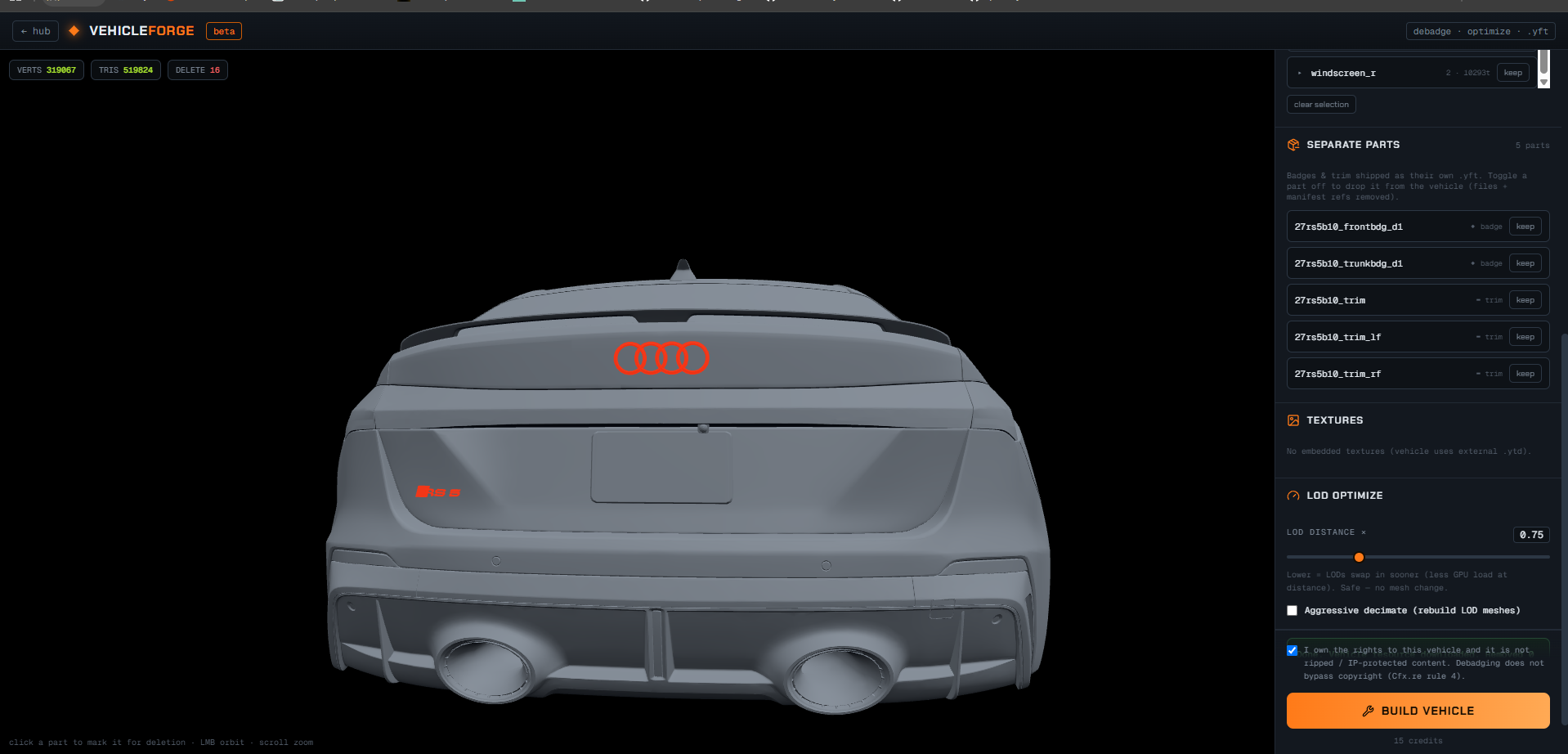
4Welded / decal badges — switch to PRECISE
Some badges (often the tailgate lettering) are welded into the body panel. In the default WELDED mode a click can swallow the whole panel. Use the viewport edges: WELDED / PRECISE toggle in the DEBADGE panel and switch to PRECISE — it stops at the badge's own edges and grabs just the badge.
5Whole parts & separate badge files
The DEBADGE / PARTS list on the right groups geometry by bone (misc_e = badges, door_dside_f, bodyshell…). Tick a whole part there to remove it everywhere — it's auto-removed from the base .yft and LODs too, so it won't reappear at a distance. Standalone badge files (e.g. _frontbdg) show under SEPARATE PARTS — just toggle them off.
6Textures, LODs & export
- Textures — keep/drop and resize per texture to shrink the resource.
- LODs — optional decimation for medium/low distance (off by default; leave off if unsure).
- Tick the ToS box, hit BUILD → your <model>_vehicle.zip downloads, drop it into your server resources.
7Free re-export
Missed a badge? Re-export the same vehicle again free for 7 days — no extra credits. Just export again (or re-load it from My Creations). The thank-you popup after each export links our Discord if anything's off.
8My Creations
Everything you make is saved under My Creations — re-download the result anytime, or hit re-edit to load the source straight back into the creator (free within the window).
Stuck or found a model that won't debadge cleanly? Reach out in our Discord — send the vehicle and we'll take a look.